How to customize the search results screen in ECLIPSE?
17 Feb, 2026
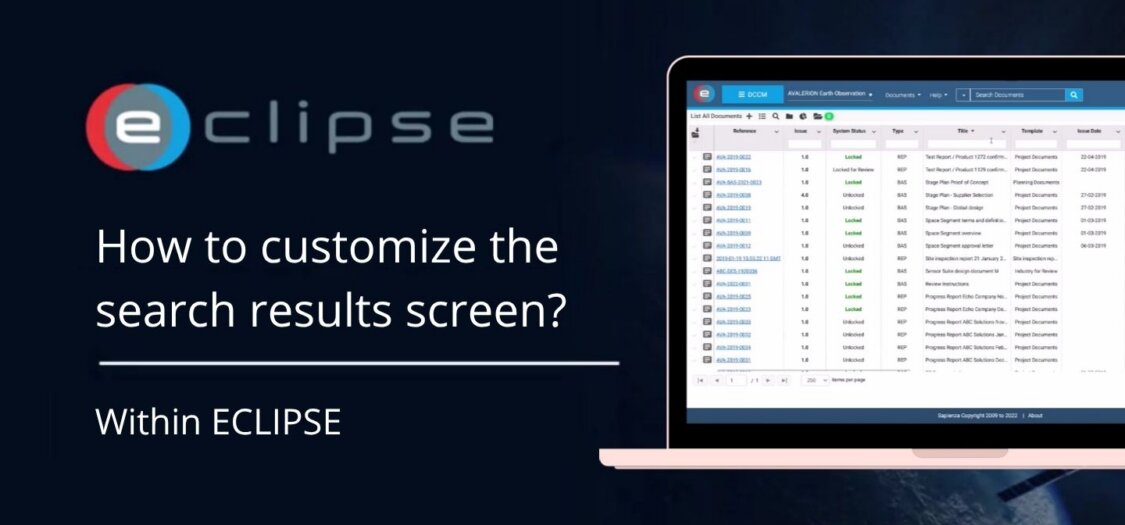
When working with search results in ECLIPSE, it’s important that the information is displayed in a way that suits your workflow. The search results screen can be customized to help you quickly find and focus on what matters most.
In this video, we will show you how to adjust and personalize the search results layout.
Below you can find instructions for the search result screen
Reorder columns
- Click and hold the column header
- Drag the column to a new position
Resize columns
- Move your cursor to the column border
- Click and drag the border to adjust the width
Pin columns
- Click the arrow in the column header
- Select “Pin left” to keep the column visible while scrolling
Show or hide columns
- Open the menu in the top right corner
- Click the cross icon to hide a column
- Click again to turn it into a checkmark and show the column
These options allow you to tailor the search results screen to your needs and improve your workflow.