How to use the search results screen in DCCM?
22 Aug, 2025
When working with large amounts of data in DCCM, efficiently navigating and interacting with search results is essential. The search results screen allows you not only to find content quickly, but also to access, review, and take actions directly from the results.
By understanding how to use these features, you can streamline your workflow and manage documents and related actions more effectively.
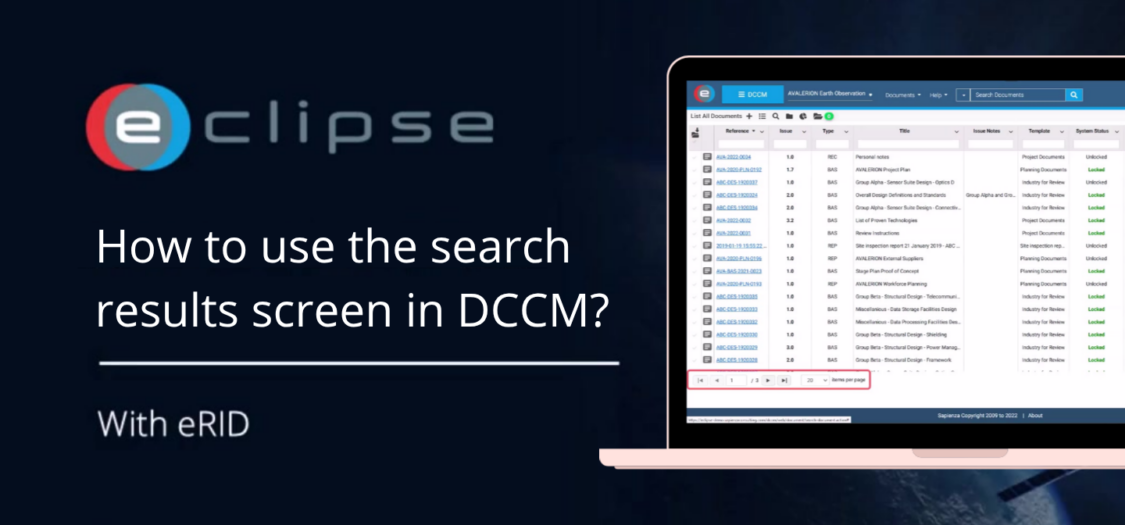
In this video, we will show you how to use the search results screen in DCCM.
How to use the search results screen in DCCM?
- Click on a title (link) to open it.
- In the edit screen, you can interact directly with the search results.
- Use the arrows to navigate between different search results.
- Click the spyglass icon to return to the search results overview.
- Use the right-most column to perform actions on the content directly from the search results.
- You can also view actions linked to the content.
- Click the action link to open and view it in AIM.
- Adjust the number of search results per page to suit your preference.