How to Approve a Document in an Approval Cycle with DCCM
15 Apr, 2026
When a document needs approval, reviewers are notified and asked to review and approve it. This ensures the document is checked and approved by the right people.
In this video, we will show you how to review and approve a document.
Let’s approve a document
- If you need to review or approve a document, you will receive an email with a link to the document.
- You can also access it through Document Reviews:
- Click Documents in the top menu
- Click Document Reviews
- Select the document you want to review.
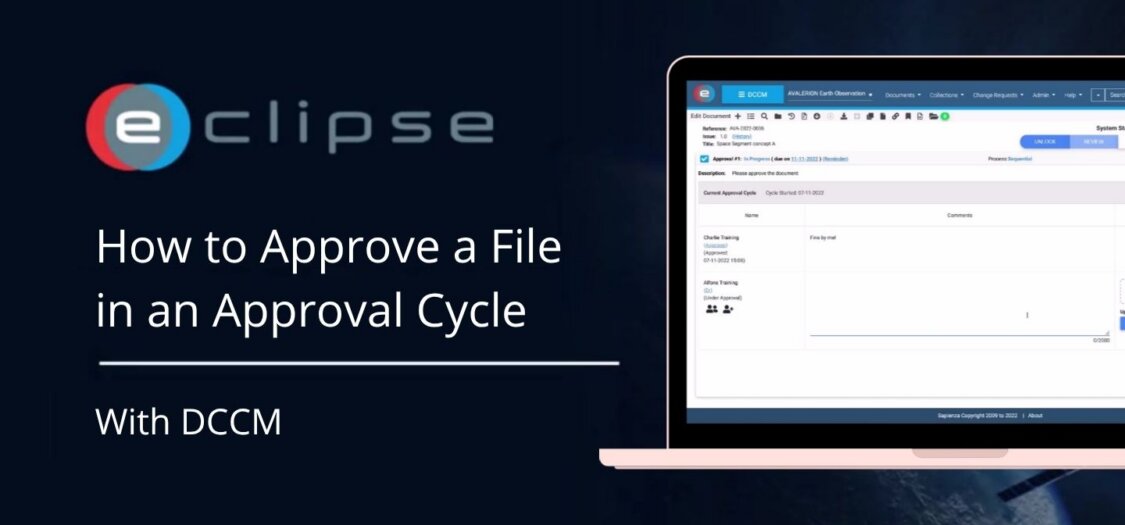
- In the Edit Document screen, expand the Approval section using the expand icon on the right.
- On the left side, you can now see if previous approvers have already approved the document.
- You can:
- Add approvers or delegate approval using the person icons
- Upload a file (for example, an updated version) under Attachments on the right
- Click Approve on the right side to approve and save the document.
- If you are the final approver, the document will be locked. You can see this in the top right under System Status: Locked. If there are more approvers (in a sequential cycle), the next approver will be notified.