What is RVM?
02 Jul, 2026
Requirements and Verification Management (RVM) helps you define, organize, and manage project requirements throughout their lifecycle. It provides a central location for requirements and enables you to maintain traceability between requirements, product structures, and verification activities.
In this video, we provide an overview of RVM and its main features.
With RVM you can:
- Create and manage requirements
- Organize requirements in a structured Requirement Tree
- Create and manage requirement types
- Assign requirements to Product Tree items
- Maintain traceability between requirements and project components
- Track the verification status of requirements
- Keep all project requirements in one central location
Requirements can be linked to different project elements, allowing teams to maintain clear relationships between requirements, system components, and verification activities throughout the project lifecycle.
What are the main features of RVM?
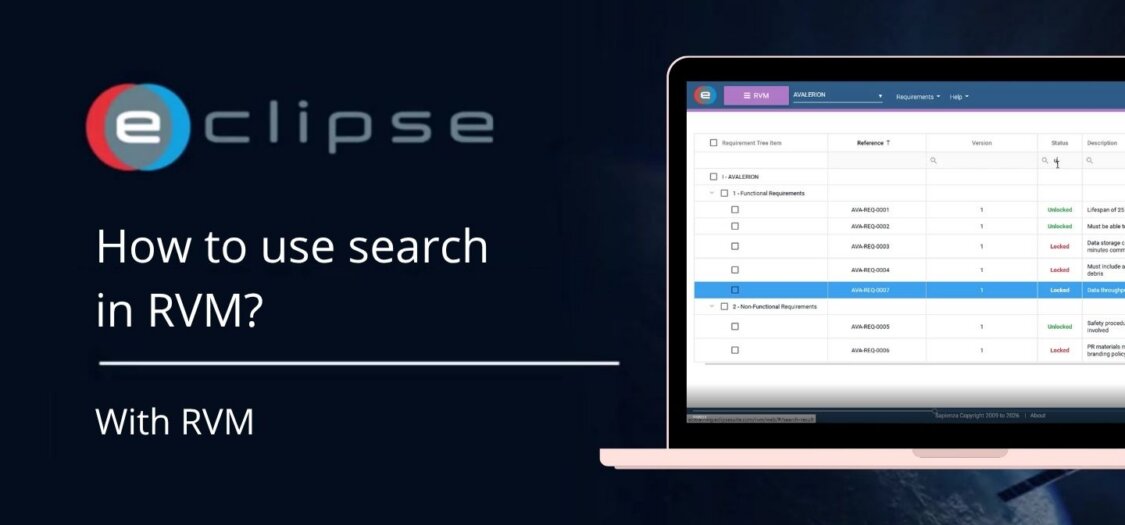
- Managing project requirements in a central repository
- Organizing requirements using Requirement Trees
- Creating and maintaining Requirement Types
- Assigning requirements to Product Tree items
- Supporting requirement verification and traceability
- Providing a clear overview of requirement status and relationships
- Helping demonstrate compliance throughout the engineering lifecycle
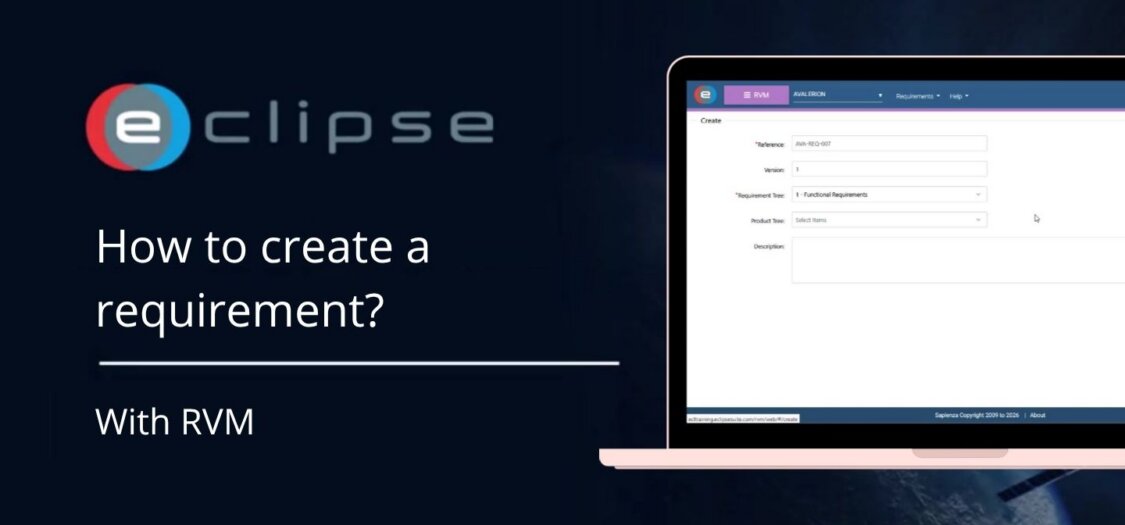
How to create a requirement
- Open the Requirements and Verification Management (RVM) module.
- Navigate to the appropriate Requirement Tree.
- Create a new requirement.
- Enter the required information, including the requirement title, description, and requirement type.
- Save the requirement.
- The requirement is now available in the Requirement Tree and can be assigned to Product Tree items and used for verification activities.
How to manage requirement types
- Open the Requirement Types section.
- Create a new requirement type or edit an existing one.
- Configure the required properties.
- Save your changes.
- The requirement type is now available when creating new requirements.
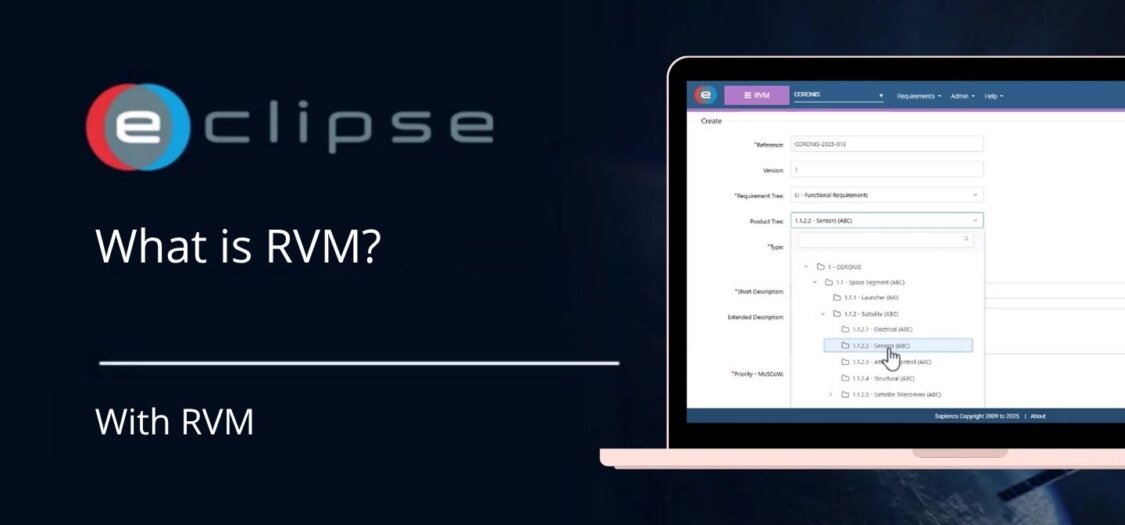
How to assign a requirement
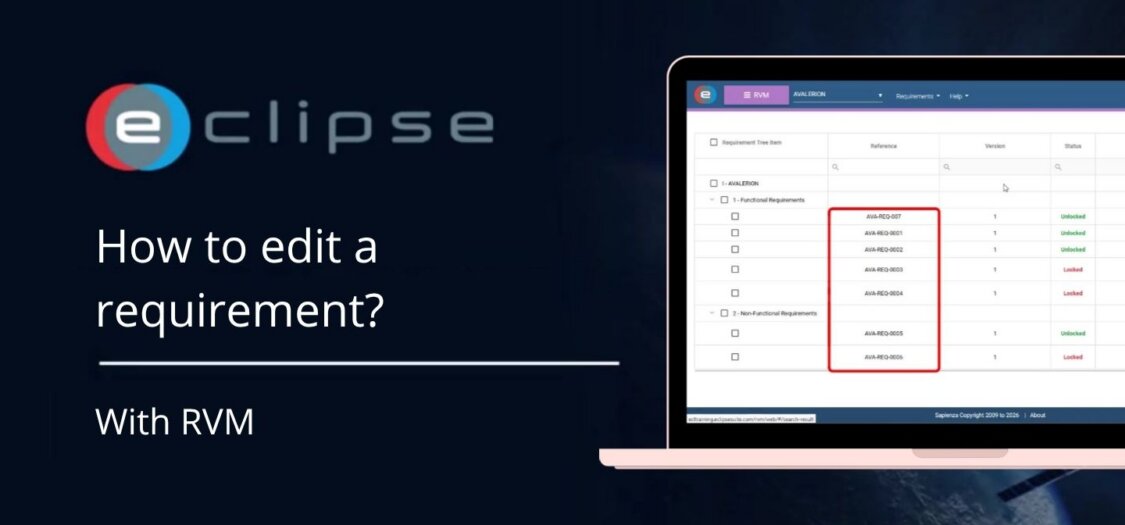
- Open the requirement you want to assign.
- Select the appropriate Product Tree item.
- Save your changes.
- The requirement is now linked to the selected product or system component, ensuring full traceability within the project.