How to use search in RVM?
04 Jul, 2026
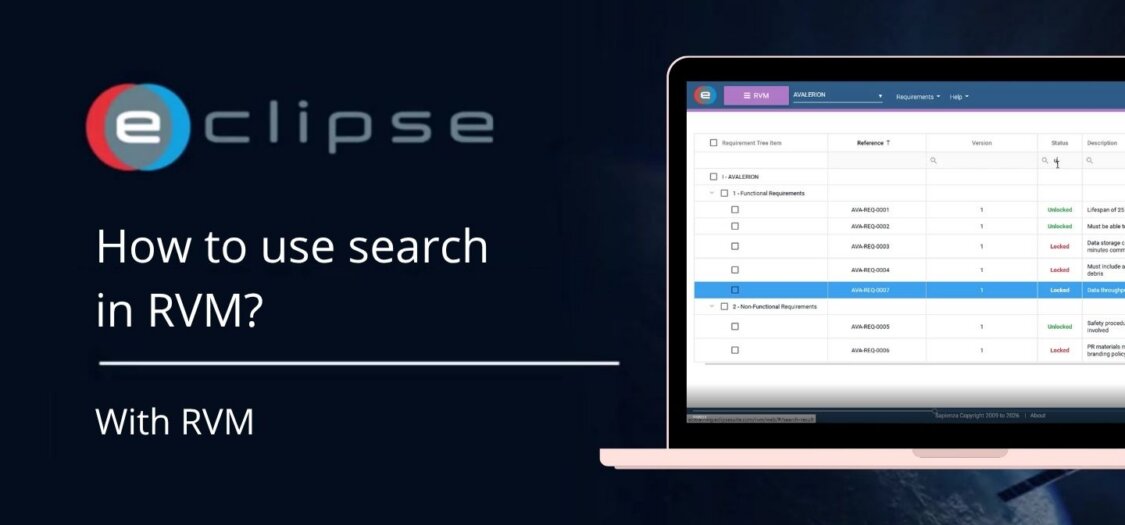
The Search Results screen in RVM allows you to quickly find, filter, and manage requirements. You can customize the layout, apply filters, and perform bulk actions to efficiently work with large sets of requirements.
In this video, we demonstrate how to use the Search Results screen in RVM.
How to use the Search Results screen
- Open the Requirements and Verification Management (RVM) module.
- Navigate to the Search Results screen.
- Browse the list of requirements displayed in the results table.
- Use the Requirement Tree on the left to navigate between requirement groups.
- Scroll horizontally to view additional requirement information.
- Rearrange the columns by dragging them to your preferred position.
- Enter values in the filter boxes below the column headers to filter the results.
- Select one or more requirements using the checkboxes to perform bulk actions.
- Use the Column Chooser to show or hide columns and customize the information displayed.
- If required, reset the layout to restore the default column configuration.
What can you do in the Search Results screen?
- Search and browse requirements.
- Filter results using the column filters.
- Rearrange columns to suit your workflow.
- Show or hide columns using the Column Chooser.
- Select multiple requirements for bulk actions.
- Reset the layout to the default view.
Result
The Search Results screen provides a flexible way to locate and manage requirements, allowing you to customize the view and quickly find the information you need.