How to assign user roles on an action item
20 Apr, 2026
Assigning user roles to an action item helps define responsibilities and ensures the right people can contribute and track progress.
In this video, we will show you how to assign and update user roles on an action item.
User Roles
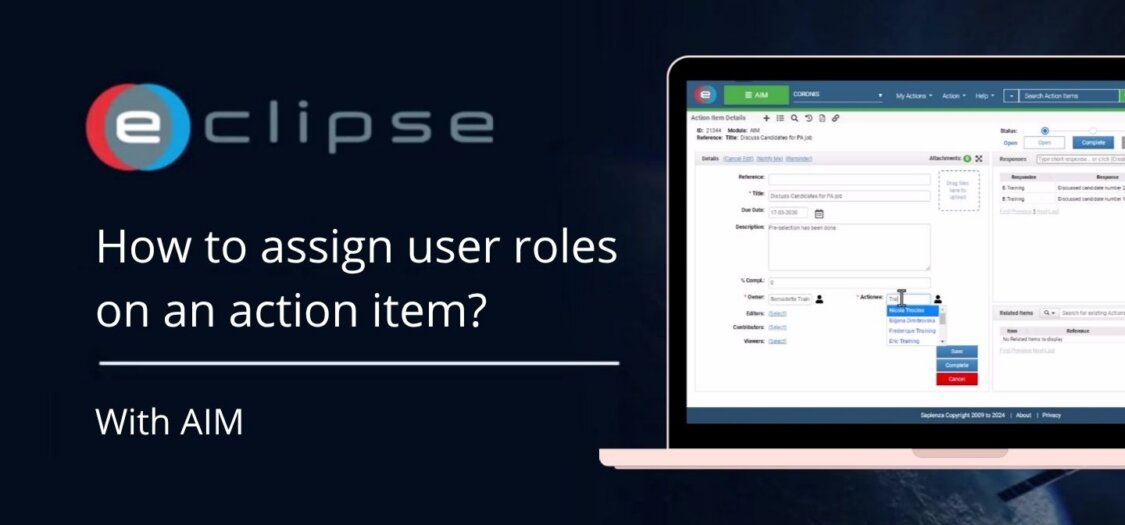
Before assigning roles, you can review the current user roles in the Action Item Details section. Here you will see the following roles:
- Executive: Provides overall oversight and monitors the progress of the action item.
- Accountable (Owner): Has final responsibility for the action item and ensures it is completed.
- Editors: Can update and modify the action item details.
- Contributors: Can add updates, responses, and input to support the action.
- Viewers: Can view the action item but cannot make changes.
- Actionee (Responsible): Responsible for carrying out the action item.
To change the Actionee (or other roles):
- Click Edit.
- Click on the current Actionee name.
- Select a new Actionee.
- Click Save.
To add Contributors (or other roles):
- Click Select under Contributors.
- Add users one by one or select a group.
- Click Add Selected Users to confirm.
You now know how to assign user roles to an action item. This ensures clear responsibilities and allows the right users to contribute and follow the progress.