How to browse the Product Tree in NCTS
20 Jan, 2026
When working with product data in NCTS, it is important to quickly navigate the product tree and access the relevant items and their associated NCRs. The product tree provides a structured overview of all items, along with clear indicators of your access level.
By understanding how to browse and use the available functions, you can efficiently locate items, review NCRs, and perform actions directly from the tree.
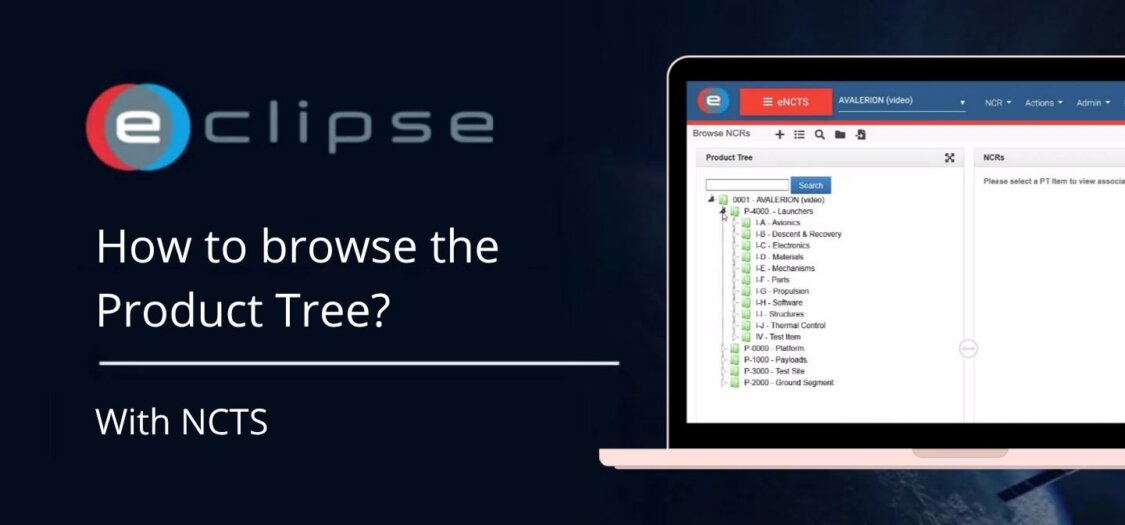
In this video, we will show you how to browse the product tree using NCTS.
How to Browse the Product Tree in NCTS
- Click the folder icon in the top right to open the product tree.
- Use the color indicators to understand your access level:
- Green indicates edit access
- Blue indicates read-only access
- Click the triangles to expand or collapse folders.
- Select a product tree (PT) item to view its associated NCRs.
- Right-click a PT item to access additional functions, such as:
- Create NCR
- Expand all
- Collapse all
- If you are unsure where a PT item is located, use the search function to find it by name.