How to add a response to an action item
10 Apr, 2026
Adding a response to an action item helps you share updates and keep others informed about progress. It allows clear communication within the task.
In this video, we will show you how to add and manage a response to an action item.
How to Add a Response to an Action Item
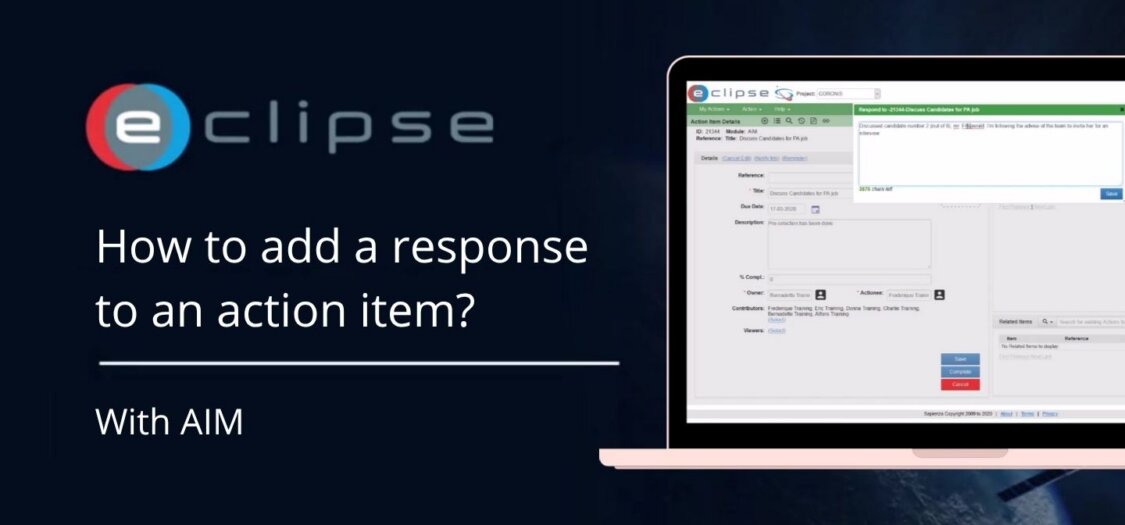
- Under the Status section, you will find the Responses section.
- Enter a short message and press Enter. You can also click Create to open a larger response screen.
- Click on the response if you want to add more information.
- A new screen will open where you can update the response.
- Click Save to save your changes.
- Click the 0 next to the response to add an attachment.
- Upload a file by dragging and dropping it into the responses section or by using the upload option.
- Close the screen. The attachment has now been added.
You have now added and updated a response to an action item, including attachments. This helps keep all communication and supporting information in one place.