How to edit a RISK
14 Jul, 2026
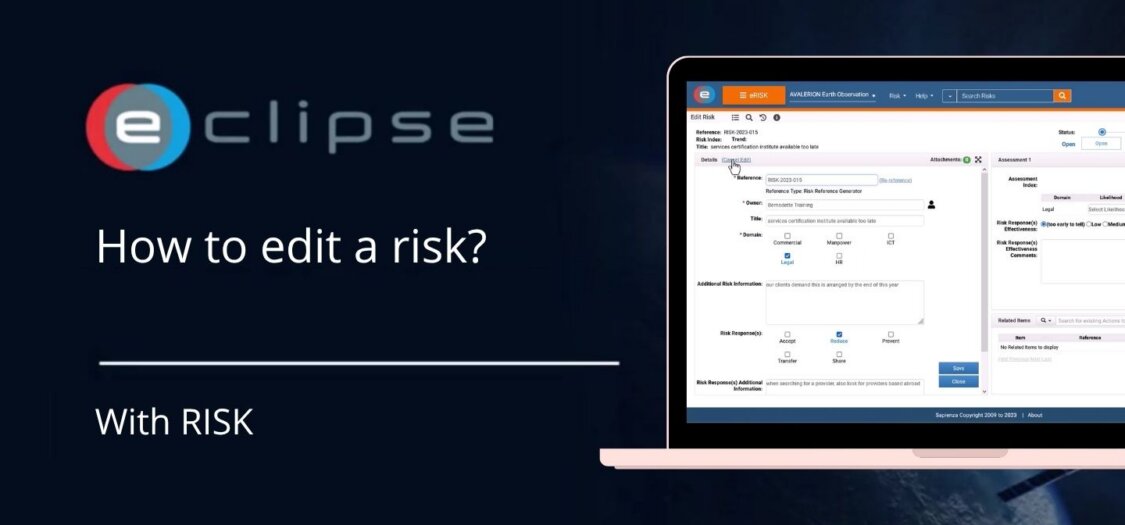
Once a risk has been created, you can update its information at any time to ensure it reflects the current project situation. In the Risk Management (RISK) module, you can edit risk details, update assessments, and keep stakeholders informed of any changes.
In this video, we demonstrate how to edit an existing risk in RISK.
Before you begin
Before editing a risk, make sure you have:
- Access to the Risk Management (RISK) module.
- The appropriate permissions to edit risks.
- An existing risk that you want to update.
How to edit a risk
- Open the Risk Management (RISK) module.
- Locate the risk you want to edit from the risk overview.
- Open the risk by clicking its title.
- Click Edit to enable editing.
- Update the required information, such as:
- Risk title
- Description
- Likelihood
- Impact
- Risk owner
- Other risk properties, where applicable
- Review your changes.
- Click Save to apply the updates.
Your changes are now stored and immediately reflected in the risk record.
What can you edit?
Depending on your permissions and project configuration, you can modify:
- Risk title
- Description
- Likelihood and impact
- Risk owner
- Risk status
- Additional risk properties and metadata
Result
The risk has been updated successfully. Keeping risk information current helps ensure accurate assessments, effective mitigation planning, and better visibility of project risks throughout their lifecycle.